Inventory guides
A barcode inventory app that works offline.
Use the camera on your iPhone or iPad to find an item, record stock coming in or going out, and check its count. Countstead reads codes on your device, against your own inventory.
Try the inventory demo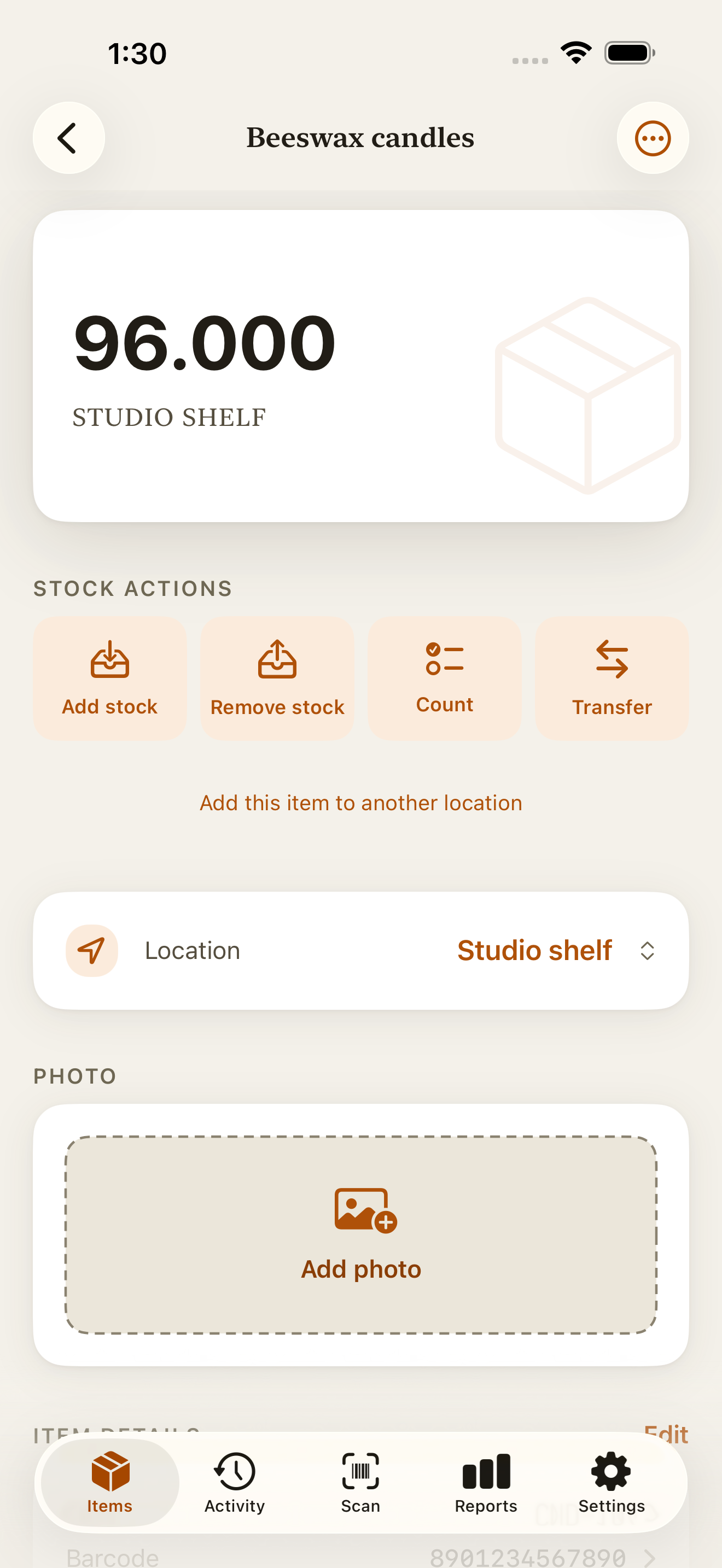
From a barcode to a stock movement
In Scan, choose Add stock or Remove stock before pointing the camera at a label. A match opens that action for the item. Its balance stays the same until you enter a quantity and save.
Choose the next scan’s action
Open Scan. Under Next scan, choose Add stock for a delivery or Remove stock for items leaving your inventory.
Scan the label
Allow camera access when prompted, then point the camera at the barcode or QR code. If the camera can’t read it, type the code under Enter barcode and tap the magnifying glass. The Search key on the keyboard works too.
Check the item and location
A match with an active item opens the action you chose. To check or change the location, close the action sheet without saving. On the item screen, use Location to choose where the movement happened, then tap Add stock or Remove stock again.
Enter the quantity and save
Enter how much arrived or left, add a note if needed, and tap Save. Check the balance and history afterward. A correction adds a new entry and keeps the original.
Choose the location before recording stock
Scanning identifies an item, not the shelf it is on. The item opens at your default location if you track it there. Otherwise, it opens at the first location in its list. If you’re selling at a market stall, check that the sale comes out of the stall’s stock.
For a physical count, find the item in Items, select the location, and tap Count. Enter the quantity actually on the shelf. A recount records what you found. If you know a sale or delivery is missing, record that movement instead.
Single-item scanning and stock actions at existing locations are available on the free plan. Creating a second location requires Countstead Pro.
If the code has no match
Countstead shows No item has this barcode, with the code it read, and asks whether to create an item for it. Check the code before tapping Create item, or tap Cancel and scan again if the label was misread. The New item form opens with the scanned barcode already filled in. To skip the question for later unknown codes, tick Always open New item for unknown codes; the same switch is in Settings as Open New item for unknown codes.
Type the item’s name in the Item section at the top. Tap Starting quantity, enter how much you already have, and tap Set quantity. If you have more than one location, set Location in the same section to where that stock is. Then tap Save item. Don’t record that stock again as a delivery.
On the free plan, a workspace holds up to 30 active items. Once it has 30, the form shows Upgrade to Pro and Save item is unavailable.
If the item is marked Archived, scanning won’t open a stock action. The code still belongs to that item, so don’t create a duplicate.
A delivery, a sale, and a count you can follow
Suppose your studio has 24 beeswax candles. Choose Add stock, scan the label, and record a delivery of 12 at the studio. The balance becomes 36. Later, choose Remove stock and record 5 leaving the same location. The balance becomes 31.
If a physical count finds 30, record a recount. The history keeps the delivery, outgoing stock, and recount visible so you can see how the count changed.
| Action | Quantity | Balance |
|---|---|---|
| Opening count | 24 | 24 |
| Stock in | 12 | 36 |
| Stock out | 5 | 31 |
| Recount | 30 counted | 30 |
Keep counting without a connection
Local scanning, item lookup, and stock movements work without an internet connection or an account. You can use them in a stockroom or at a market stall with no reception.
Your inventory stays on the device during local use.
What scanning does and does not do
Countstead matches barcodes and QR codes to your own items. It does not query an external product catalog, so scanning an unfamiliar product will not supply its name or other details. You enter those when you create the item.
An item can also be tracked without a barcode. Search for it by name and use the same stock actions. Use each barcode on only one item in your workspace so a scan has one clear match.
Common questions
- Do I need a separate barcode scanner?
- No. Countstead uses the camera on your iPhone or iPad.
- Does scanning automatically increase the count?
- No. When you scan one item, a matching code opens the Add stock or Remove stock action you chose. You still enter the quantity and tap Save. An unknown code offers Create item.
- Can I bring barcodes in from a spreadsheet?
- Yes. Include a barcode column in your CSV and map it during import. Preserve the codes as text so leading zeros survive.
Try the inventory demo
Add an item and record stock movements in the browser. The demo is a working example; camera scanning is simulated.
Try the inventory demoAbout this guide
Written by Imdad Ismail, an independent developer in Sri Lanka who makes Countstead. Where a guide gives steps in Countstead, they match the version on the App Store. To report a mistake, email [email protected].