Inventory guides
Inventory for craft businesses, from studio to stall.
At a craft fair, your stock may be split between the stall and your studio. Countstead keeps the counts for each location on your iPhone or iPad, even without a connection. Creating the second location requires Countstead Pro.
Try the inventory demo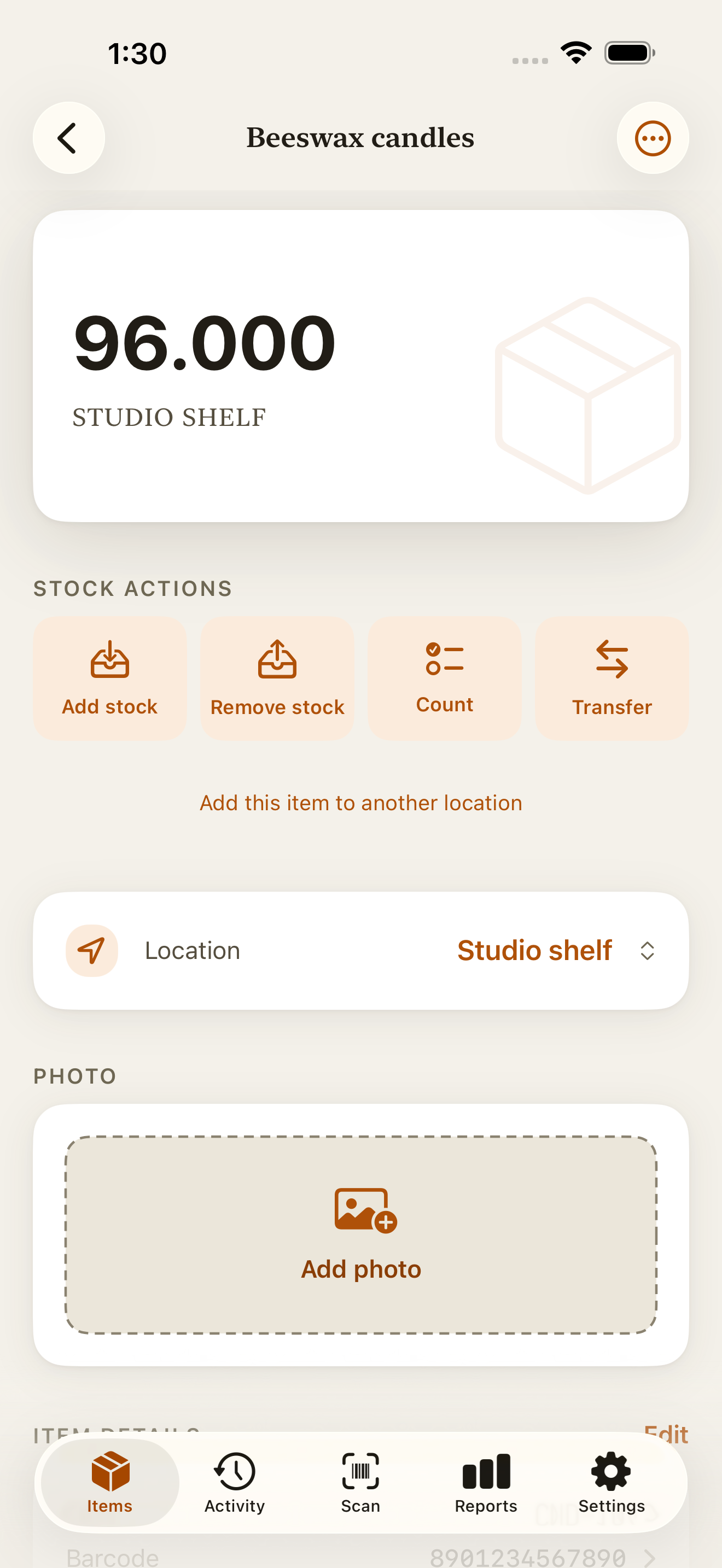
Set up your items and locations
Give each size or scent its own item if you count it separately. Small unscented candles and large lavender candles, for example, should have separate counts. You can add a SKU or barcode, but neither is required.
In Settings → Locations, name your studio location Studio and create Market stall. Creating this second location requires Countstead Pro.
Create each item with its opening stock at Studio. If you import from a CSV, follow the import guide linked below, then open each item to check its location and quantity. Don’t record that same opening stock again as a delivery.
Open the item and tap Add this item to another location. Choose Market stall, then tap Add to location. Its stall balance starts at zero. Use Transfer when you move stock there. If the location shows “waiting for sync”, let cloud sync finish before transferring.
Taking 24 candles to a market
Suppose you have 40 candles at the studio. You take 24 to a fair, sell 7, discard 1 damaged candle, and bring 16 home. That leaves 32 candles in total: 40 minus 7 sold and 1 discarded.
Moving the box from Studio to Market stall leaves the total unchanged. The total falls when you record the sales and the discarded candle.
| Moment | Studio | Stall | Total |
|---|---|---|---|
| Opening stock | 40 | 0 | 40 |
| Transfer 24 to the stall | 16 | 24 | 40 |
| Record 7 sold at the stall | 16 | 17 | 33 |
| Record 1 discarded at the stall | 16 | 16 | 32 |
| Transfer 16 back to the studio | 32 | 0 | 32 |
Keeping track on market day
Record each movement against the location where it happens. At closing, compare the stall balance with what you have left.
Pack the stock
Count what you’re packing. Open the item and tap Transfer. Set From to Studio and To to Market stall, then enter the packed quantity. Check the locations, current balances and quantity, then tap Save transfer.
Record sales at the stall
Find the item in Items. On its screen, use Location to select Market stall before tapping Remove stock. Enter the quantity sold and tap Save. Give discarded or given-away items their own entries, with a note explaining why they left your stock. These stock actions work offline.
Count what’s left
With Market stall selected, compare the physical count with the stall balance. If they differ, check the movement history and your notes. Record a missed movement or correct a mistaken entry when you can explain the difference. If you can’t, tap Count and enter the quantity you actually have.
Bring unsold stock home
Tap Transfer, set From to Market stall and To to Studio, and enter the quantity coming home. After you save, the stall balance should be zero if everything came back. Leave any stock that’s staying elsewhere recorded at that location.
Check the location after scanning
A scan finds the item in your inventory. It opens at your default location if you track it there, or at the first location in its list. You may still be looking at Studio stock after a scan at the stall.
In Scan, choose Remove stock before reading the code. When the action sheet opens, tap Cancel without saving. On the item screen, use Location to choose Market stall, then tap Remove stock again. Enter the quantity sold and tap Save.
If Market stall is missing from Location, add the existing item to that location first. Don’t create a duplicate item for the stall.
If you use one location
You can keep one location as the total of all your stock and use a packing list to note what goes to the fair. Moving a box to the stall doesn’t change that total.
Record sales, discarded items, and other outgoing stock against this location. After the fair, count what came home plus what stayed at the studio, and compare that combined count with Countstead.
Plan what to take next time
Add the fair’s name to movement notes so you can find its entries later. Look at what sold and what came home before deciding what to make or pack next. A low-stock threshold at the studio helps you spot items running low in the Low Stock view.
You’ll still need to take payments separately and enter sales from an online shop yourself. Countstead doesn’t import those orders automatically. If you also track wax, jars, or ribbon, record the materials you use: adding finished candles won’t deduct them for you.
Common questions
- Can I track handmade items that have no barcode?
- Yes. Create the item with a name and find it through search. You can add a SKU or barcode if you need help telling similar products apart.
- Do I need Countstead Pro for a craft fair?
- Recording stock movements at an existing location doesn’t require Pro. You need Countstead Pro to create the second location for the studio-and-stall setup.
- Should I record unsold items coming home as stock in?
- Use Transfer to move them from Market stall back to Studio. With one location covering all your stock, you don’t need an entry just because you bring a box home.
- Does a lower closing count tell me how many items sold?
- Not on its own. A gift, discarded item, or transfer can also reduce the count. Check those movements before treating the difference as sales.
Try the inventory demo
Add an item and record stock movements in the browser. The demo is a working example; camera scanning is simulated.
Try the inventory demoAbout this guide
Written by Imdad Ismail, an independent developer in Sri Lanka who makes Countstead. Where a guide gives steps in Countstead, they match the version on the App Store. To report a mistake, email [email protected].