Inventory guides
A free inventory count sheet template and stocktake checklist you can take to the shelf.
Print the free inventory count sheet template in A4 or US Letter, or download it as an editable Excel file. Then use this stocktake checklist to count one location and check it against your records. The printable sheet has space for first counts, recounts, and any differences you need to explain. It works with paper records, a spreadsheet, or Countstead.
This guide is for shops, workshops and makers who keep a stock record and count by hand. A stocktake is a physical count of the stock you hold, checked against that record. The checklist works through one location at a time. If you’d rather count a few items every week, that’s cycle counting, which has its own guide.
Download A4 count sheetDownload the Excel count sheet (.xlsx)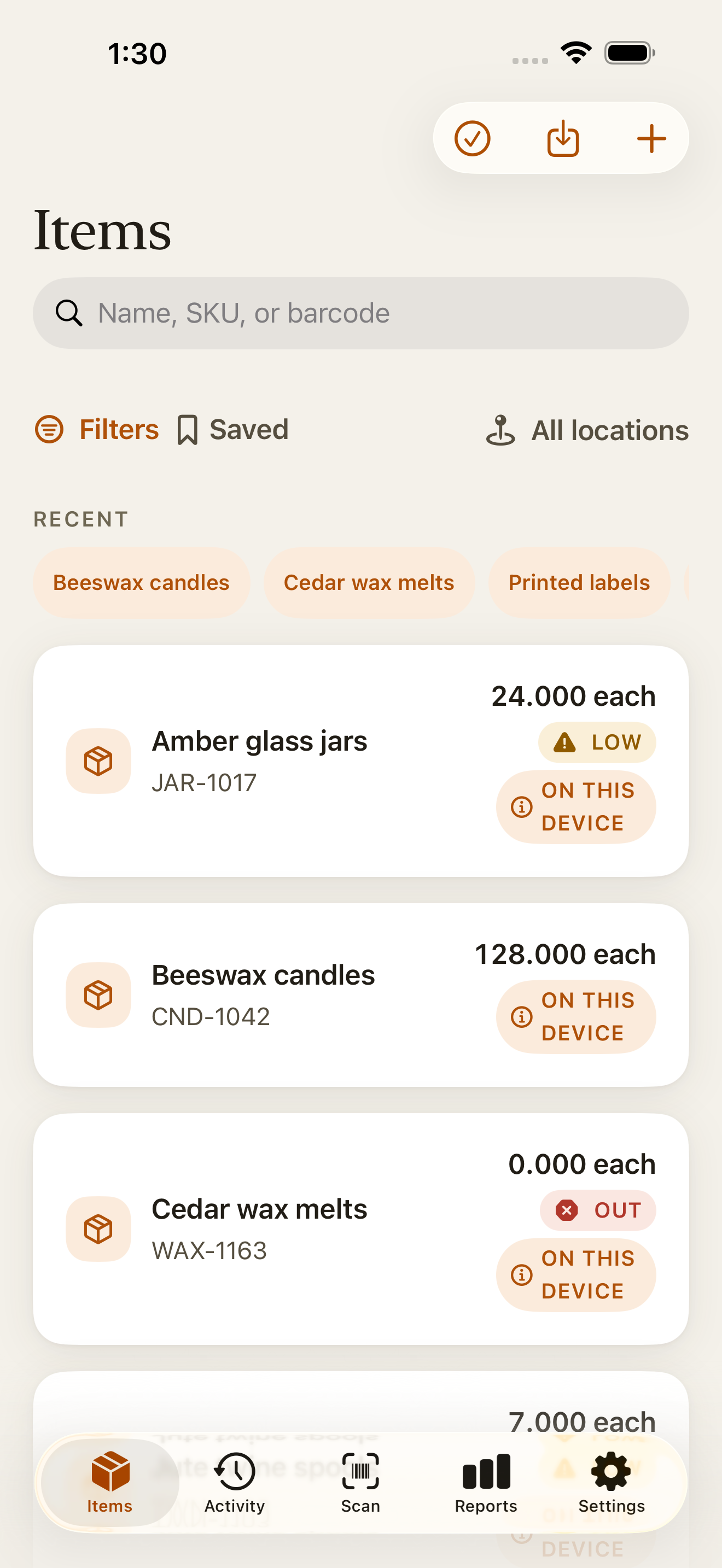
Your stocktake checklist: before counting
Pick a quiet time and pause deliveries, sales, and transfers in the area if you can. If something has to move, write down what changed and when. Use that note when you reconcile the count.
Choose the area
Start with one location or clearly marked shelf area. Write it on the sheet along with the date, your name, and the start time. Give each sheet its own number.
Sort out the units
Decide whether you are counting individual items, packs, or a measured quantity. Use the same unit as your inventory record. An unopened pack of 12 is 12 items if the record uses individual items.
Make the stock easy to identify
Separate similar sizes or variants and note stock awaiting a decision, such as a damaged item you still hold. Include each item in the appropriate area once. Keep incoming stock apart until its receipt has been recorded.
Count the shelf, then check the record
Work through the area in a fixed order. Write the item name or SKU, shelf or bin, unit, and first count on the sheet. Mark the area when you finish so you do not count it twice.
Write 0 if an item has no stock. Leave a blank only when you have not counted it. Give different items separate rows. If the same item appears on more than one row, add those rows together before you compare the total.
If the count differs from the record, count the item again before changing anything. Use the Recount column so the first count stays readable, and note anything that may explain the result.
Work out what the difference means
Compare the confirmed physical quantity with the recorded quantity for the same location and point in time. If stock moved during counting, bring those movements into the comparison first. A lower count alone does not tell you whether something was sold, moved, or discarded.
Suppose a candle record shows 40, but two physical counts both find 38. The difference is 38 minus 40, or -2. Check for a missed outgoing movement, a transfer, or a mistaken entry before deciding what to record.
| Item | Recorded | Confirmed | Difference |
|---|---|---|---|
| Candles | 40 | 38 | -2 |
| Packing boxes | 24 | 24 | 0 |
| Labels | 12 | 15 | +3 |
Bring the record up to date
If you find a missed movement, record it once. For a mistaken movement, use a correction. Check the balance again before making another adjustment, so you don’t apply the same difference twice.
In Countstead, open the item at the location you counted. If you need a recount, choose Count and enter the confirmed physical quantity, such as 38, rather than the difference of -2. Check the result before saving. If stock has moved since you counted, bring the count up to date first.
Keep the sheet with the date, explanation, and action taken. Fill in who checked it and when the records were updated, so you can follow what happened at the next count.
Using the printable count sheet
Both paper sizes contain the same worksheet. Print at actual size and use one sheet per location. The top table has room for first counts and recounts; the smaller table is for differences that need an explanation or an update.
The sheet is blank and filled in by hand. It does not pull data from the app, and the app does not import your handwritten counts. You can use it before deciding whether an inventory app suits your business.
A free inventory count sheet template for Excel, Google Sheets and Numbers
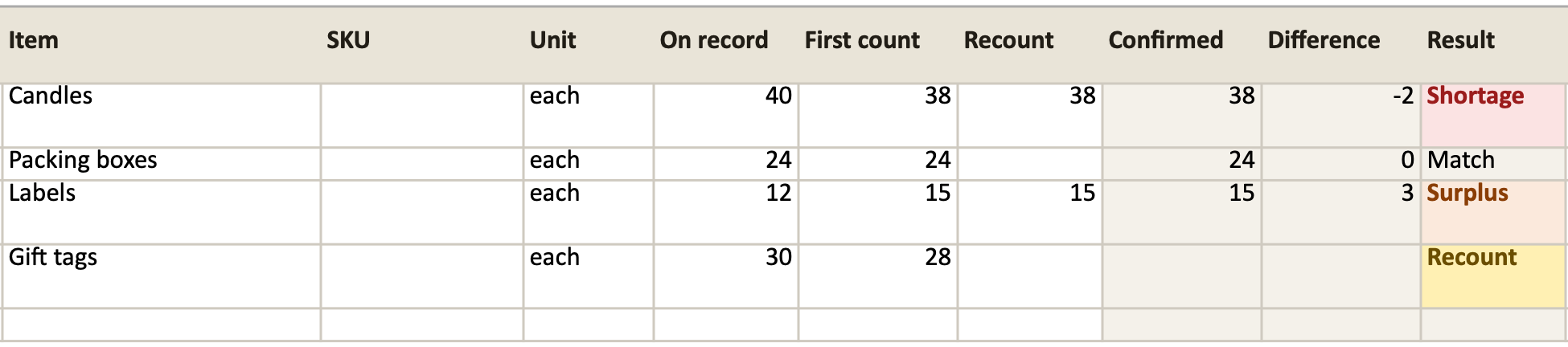
If you’d rather type your counts than write them, download the stock count sheet as a spreadsheet. It is a free Excel workbook (.xlsx) with no macros, and the download needs no sign-up. Each row is one item at one location. You type the quantity on record and your counts, and the shaded columns work out the confirmed count, the difference, and whether to count again. The formulas are already in rows 2 to 501, and a second sheet, How to use, repeats the steps below.
The four example rows are made up. Three are the items in the table above: Candles counted twice at 38 against a record of 40, Packing boxes matching at 24, and Labels counted twice at 15 against 12. The fourth, Gift tags, has a first count of 28 against 30 and is waiting for a recount.
For a blind count, leave On record empty while you count and fill it in afterwards. Difference and Result stay blank until On record has a number.
In Numbers 15.1 on a Mac and in Google Sheets (File > Import), the formulas worked in the example rows and in new rows. The file hasn’t been tested in Excel yet. Its formulas use only IF, OR and ROUND.
Clear the examples
Clear the white cells in the four example rows, so the formulas in the shaded columns stay.
Fill in the record
Type the date, location, item and unit, and the quantity on record for each item, or leave On record empty for a blind count. Use the unit your record uses.
Type each first count
Work through the area in a fixed order. Type 0 for an item with no stock, and leave the cell empty only if you haven’t counted it.
Recount what differs
When Result says Recount, count the item again and type the number under Recount. The first count stays as you typed it. Confirmed then uses the recount, and Result shows Shortage, Surplus or Match. If the recount matches neither the first count nor the record, count once more and type that number under Recount.
| Column | What goes in it | Formula in row 2 |
|---|---|---|
| A: Date counted | When you counted | Typed in |
| B: Location | The shelf, room or stall you counted | Typed in |
| C: Item | The item name, with its size or variant | Typed in |
| D: SKU | The item’s code, if it has one | Typed in |
| E: Unit | What you count in, such as each, pack or kg | Typed in |
| F: On record | What the record shows for this item at this location | Typed in |
| G: First count | Your first physical inventory count | Typed in |
| H: Recount | A second count, when the first one differs | Typed in |
| I: Confirmed | The recount if there is one; otherwise the first count when it matches the record | =IF(H2<>"",H2,IF(OR(F2="",G2=""),"",IF(G2=F2,G2,""))) |
| J: Difference | Confirmed minus on record | =IF(OR(I2="",F2=""),"",ROUND(I2-F2,3)) |
| K: Result | Recount until the count is confirmed, then Shortage, Surplus or Match | =IF(F2="","",IF(I2="",IF(G2="","","Recount"),IF(J2<0,"Shortage",IF(J2>0,"Surplus","Match")))) |
| L: Counted by | Who counted | Typed in |
| M: Note | Anything that may explain the result | Typed in |
A count sheet or Countstead
The spreadsheet compares your counts with the quantities you type in, but it doesn’t change a balance. That still happens in your stock record. Countstead’s spreadsheet import adds new items, each with an optional opening quantity, but it doesn’t record a count for items you already have.
The sheet is enough when you count now and then and keep your stock record somewhere else. Countstead suits you when you want each confirmed count to become the item’s balance at that location, with the earlier entries kept in its history. Countstead Pro adds a guided count, which lists the items at one location and shows what’s off: each difference with its expected and counted quantities, and anything not counted. Expected is what was on record when you counted.
Common questions
- Is there a free inventory count sheet template in Excel or Google Sheets?
- Yes. The count sheet on this page also comes as a free .xlsx file with no sign-up, which you can open in Numbers or import into Google Sheets. Type the quantity on record and your counts, and it works out the confirmed count, the difference, and which items to count again. It was tested in Numbers on a Mac and in Google Sheets, but not yet in Excel.
- Can I use the count sheet as a stocktake register?
- Yes. A stocktake register is a record of each count: what was counted, where, when and by whom, and how each difference was settled. Keep the dated paper sheets together with their differences tables filled in, or keep the .xlsx, which has a row for each item with the date counted, location, counts, result, who counted it and a note.
- Is a stocktake the same as recording a delivery?
- No. A delivery adds stock that has arrived. A stocktake checks the quantity already present. Record any delivery that happened during the count before comparing quantities.
- Should I count each location separately?
- Yes. Use a separate sheet or clearly identified section for each location. Reconcile quantities at that location before combining them into a business total.
- Can I use the count sheet without Countstead?
- Yes. The printable sheet is a paper worksheet and the spreadsheet is a plain .xlsx file. Use either alongside whichever inventory records you already keep.
- Should I enter the total or the difference in Countstead?
- Enter the physical total for that item and location. If you counted 38, enter 38. The difference from the recorded balance belongs in your reconciliation notes.
Try the inventory demo
Add an item and record stock movements in the browser. The demo is a working example; camera scanning is simulated.
Try the inventory demoAbout this guide
Written by Imdad Ismail, an independent developer in Sri Lanka who makes Countstead. Where a guide gives steps in Countstead, they match the version on the App Store. To report a mistake, email [email protected].