Inventory guides
Bring your inventory spreadsheet to your iPhone.
Keep the list you have already built. Export it from Excel as CSV, match the columns in Countstead, and check the result before adding your items. The same approach works with a CSV exported from other spreadsheet apps.
This guide is for small businesses that keep their item list in Microsoft Excel or another spreadsheet app. It covers adding that list to Countstead as new items. Countstead reads CSV files, not .xlsx workbooks, so the first step is saving a CSV copy of the worksheet.
Download the sample CSV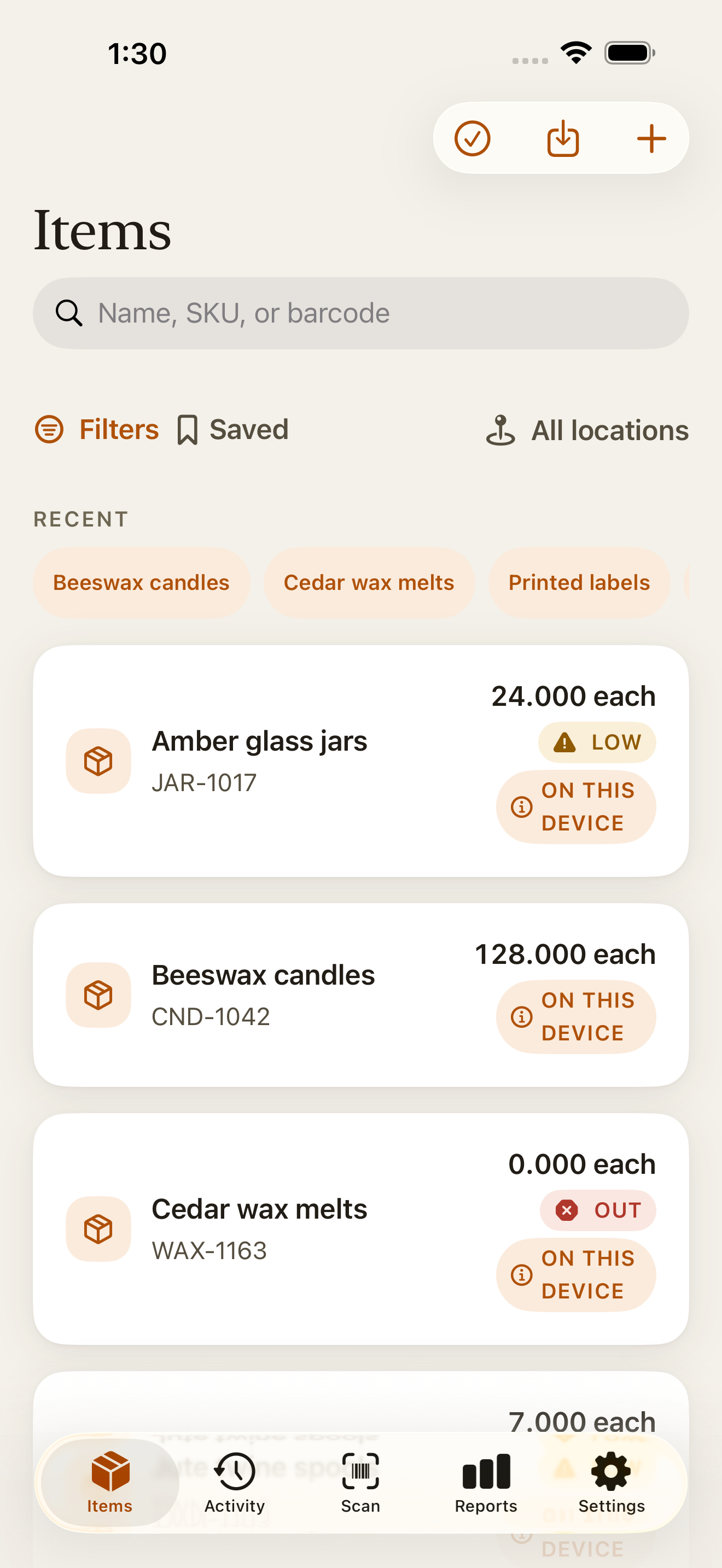
Start with a clear item list
Use one header row, then one item per row. An item name is required. You can also include a SKU, barcode, opening quantity, and low-stock threshold. Remove subtotal rows, merged headings, and explanatory notes above the header.
If you keep stock in more than one location, set up those locations in Countstead first. Then add a column headed location and type each row’s location name exactly as it appears in the app. The import can’t create a location or use an archived one, and creating a second location requires Countstead Pro. Rows with an empty location cell go to your default location, the one marked Default under Locations in Settings.
Each row creates one item at one location, so list each item once. To keep an item at a second location, import it once, then open it and tap Add this item to another location. It starts at zero there until you record its stock.
The sample contains three fictional items and no location column, so its rows go to your default location. Replace the examples with your own records. You can leave optional cells empty.
| Column | What to enter |
|---|---|
| name | The name you want to see in your inventory. Required. |
| sku | Your internal item reference, if you use one. |
| barcode | The code printed on the item or its label. Keep it as text. |
| opening_quantity | How much stock you have at the start. |
| low_stock_threshold | The Low Stock view lists the item at or below this number. |
Export the worksheet as CSV
A CSV (comma-separated values) file is plain text, with one line per row and commas between the cells, so every spreadsheet app can save one. In Microsoft Excel, choose File > Save As and pick CSV UTF-8 (Comma delimited). In Google Sheets, choose File > Download > Comma Separated Values. In Numbers, choose File > Export To > CSV. UTF-8 keeps accented letters and names in other scripts intact.
Transfer the CSV to a place you can open from Files on your iPhone or iPad.
Use a dot for decimal quantities, such as 2.500, and avoid thousands separators. Countstead also expects commas between columns. In regions that use a decimal comma, some spreadsheet apps separate columns with semicolons instead. Countstead then sees each row as one column and can’t match Name, so save the file with commas before importing.
Format barcode cells as text before entering or pasting codes, or a spreadsheet may remove a leading zero or shorten a long number. Then check the exported file.
Keep the header names in the sample unchanged if you want them to match automatically. Matching ignores capital letters and spaces around a header, so Name and NAME both match name. Countstead also recognises item, item_name, or product for the name; qty, quantity, or stock for the opening quantity; and price or cost for the unit cost. A header such as Opening quantity, with a space instead of an underscore, isn’t matched automatically, so match it in the app.
Match, check, and import
The preview lists every row with issues and up to 20 ready rows, with their names and opening quantities, then a count of the rest. It doesn’t show codes or locations, so check those after importing.
Choose the CSV file
Open Items, tap Import from spreadsheet, and choose your file. The button is the download icon at the top of the screen. If you’re setting up Countstead, you can tap Bring my existing inventory instead. On the Import CSV screen, keep Create new items selected for your first inventory list.
Match the columns
Make sure Name points to your name column, then match the optional fields you want, such as Opening quantity and Low-stock threshold. Check the automatic matches too: a column headed price is matched to Unit cost, and a column headed location is matched to Location.
Check the rows
Tap Preview import. Under Issues, each row shows what’s wrong, such as a duplicate barcode or a location name that doesn’t match. Row 1 is the first row under your header. Exclude rows with issues, or fix them in the source file and start the import again. Rows without issues can’t be excluded here, so to leave one out, delete it from the file and start again.
Import and check your items
At the bottom of the preview, tap the button that shows how many items will be added, such as Import 3 items. Countstead adds them in one step, so a failed import doesn’t leave a partial list. Then open a few items to check their names, codes, locations, and balances.
Checks that prevent common import problems
If Name is not matched, select the column that contains item names. If a quantity is flagged in the preview, remove unit suffixes and thousands separators, and check the decimal format.
If two rows share a barcode, confirm whether they describe the same item before importing. You also can’t import a barcode that another item in the workspace already uses.
On the free plan, a workspace holds up to 30 active items, counting the ones already there. If a file would take you past 30, the preview shows how many rows fit and lets you keep just those. Countstead Pro removes the item limit.
After a successful import, don’t import the same file again in Create new items mode. Rows without a barcode would be added a second time, and rows with a barcode would be flagged as duplicates.
To change details of items you already have, choose Update existing items, which matches rows to items by barcode. That mode doesn’t change opening quantities or current balances. Use stock actions for quantity changes.
| Limit | Value |
|---|---|
| Data rows per file | 10,000, plus the header row |
| File size | 50 MB |
| File format | UTF-8 CSV with commas between columns |
| Decimal places in quantities | Up to three, with a dot, such as 2.500 |
| Ready rows shown in the preview | Up to 20, then a count of the rest |
| Active items on the free plan | 30 per workspace, including items already there. Countstead Pro removes the limit. |
After the import
Each imported item starts with its opening quantity at one location. From here, record deliveries, sales, and counts as stock movements instead of editing the spreadsheet. To find an item, scan its label.
Common questions
- Can I import an .xlsx file directly?
- No. Save the worksheet as a UTF-8 CSV first, then import the CSV.
- How many items can I import at once?
- Up to 10,000 data rows in one file of up to 50 MB. On the free plan, a workspace holds 30 active items in total, and Countstead Pro removes that limit.
- What happens if I import the same file twice?
- In Create new items mode, rows without a barcode are added again and rows with a barcode are flagged as duplicates. To change items you already have, use Update existing items, which matches rows by barcode.
- Can I use a spreadsheet other than Excel?
- Yes. Countstead reads the CSV, whichever app created it. Export a UTF-8 CSV with one header row and an item name column.
- Does importing require an account?
- No. You can import into a local workspace without an account. The CSV must be available on your device, and downloading it from online storage may need a connection first.
- Can I include fractional quantities?
- Yes. Quantities support up to three decimal places. Use a dot decimal separator, such as 2.500, in the CSV.
Try the inventory demo
Add an item and record stock movements in the browser. The demo is a working example; camera scanning is simulated.
Try the inventory demoAbout this guide
Written by Imdad Ismail, an independent developer in Sri Lanka who makes Countstead. Where a guide gives steps in Countstead, they match the version on the App Store. To report a mistake, email [email protected].