Inventory guides
Inventory spreadsheet vs app: when to switch
If you run a small business, keep your inventory spreadsheet while you can update it reliably and explain each change. An app is worth trying when you keep putting off stock updates, need to find items by barcode, or can’t tell why a count changed. Start with one item before moving the whole list.
Download Countstead for iPhone or iPadTry the browser demo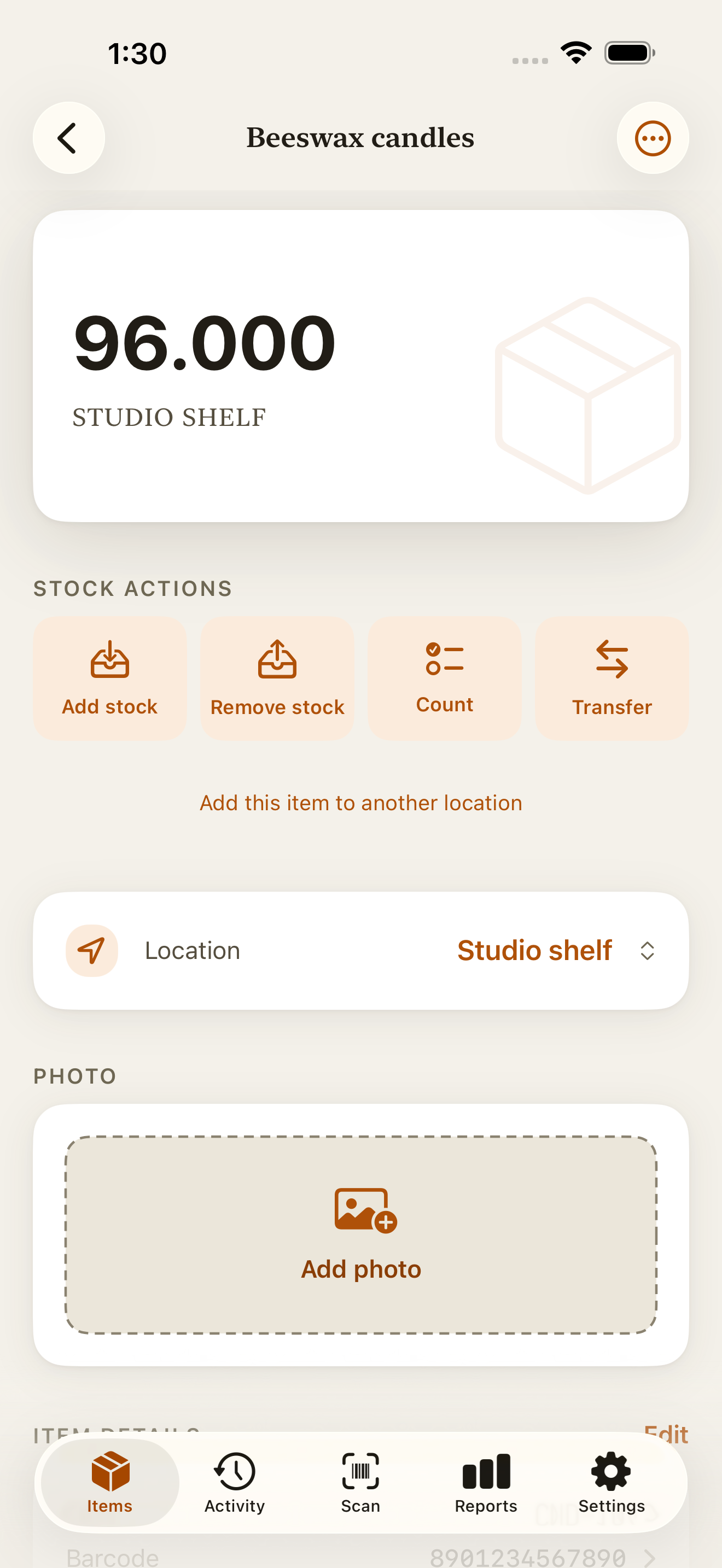
Inventory spreadsheet vs app: compare the daily work
In a spreadsheet you control the columns and calculations. A dedicated app has a set way to record stock movements. The table uses Countstead as the app; other apps have different features and limits.
| Daily task | Spreadsheet | Countstead |
|---|---|---|
| Record a delivery or sale | Enter a movement row and use formulas to calculate the balance. | Record stock in or stock out. The balance updates from the saved movement. |
| Explain a changed count | Keep a separate movement log next to the balance. | Read the stock history. A correction adds an entry and preserves the original. |
| Find an item by barcode | Depends on your sheet and scanner setup. | Use the device camera to look up a code in your own inventory. |
| Work without reception | Depends on the spreadsheet app and where the file is stored. | Look up items and record stock movements offline on iPhone or iPad. |
| Take your records with you | Keep the workbook or export its data. | Export a CSV package with items, locations, balances, and movement records. |
When your spreadsheet is still enough
Keep it if entering deliveries and sales is already part of your routine, your physical counts agree with the record, and the columns answer the questions you need to ask. There is no item count that automatically makes a spreadsheet the wrong choice.
Spreadsheets let you choose your columns, categories, and formatting, as Microsoft’s inventory spreadsheet guide explains. You can keep the workbook for custom calculations even if you move daily stock movements into an app.
Before switching, check whether a dated movement log would solve the problem. A row for each delivery, sale, or count gives you more to work with than repeatedly replacing one quantity cell.
Three signs an app is worth trying
Look at where the record breaks down during an ordinary working day.
You leave stock updates until later
A delivery arrives while you’re unpacking, or you sell something away from your desk. If the sheet waits until evening, try recording the movement on your device while you’re beside the stock.
You can see the balance but can’t explain it
The cell says 20, but you can’t tell which delivery or sale produced that number. Countstead keeps stock movements in the history, including corrections. It still depends on you entering the right action and quantity.
Finding the right row interrupts the job
If your products have codes, camera lookup can help you reach the item you already track. Countstead matches your own inventory; it does not fetch names from an external product catalog. Items without barcodes can be found by name.
Follow one item through a delivery and a sale
Suppose you sell notebooks from one shelf. You start with 18, receive 6, then sell 4. The count should now be 20. These are illustrative quantities, separate from the app screenshot above.
A spreadsheet with a movement log can show the same sequence. In Countstead, the stock actions create the record as you use them. Either record is only right if you enter each movement.
| What happened | Quantity entered | Balance |
|---|---|---|
| Opening stock | 18 units | 18 units |
| Delivery: stock in | 6 units | 24 units |
| Sale: stock out | 4 units | 20 units |
Start with one real item before moving the list
Choose an item you handle regularly. Count it when no units are arriving or leaving, and keep your existing records while you try the app.
Count what is there
Add the item with the physical quantity at one location. Use a consistent unit, such as individual notebooks rather than packs of notebooks. Leave the barcode empty if you do not use one.
Record the next real change
Use stock in when a delivery arrives or stock out when units leave. Enter only movements that happen after your opening count. Do not replay older sales already reflected in that count.
Check the balance and the history
Compare the app with the stock on the shelf and your existing record. If they differ, check for missed or repeated entries before saving a recount. A recount records what you found; it does not establish why stock is missing.
Move more items when the routine works
Export a copy of your spreadsheet as CSV and follow the import guide linked below. Keep the original workbook. Leave the item you already added out of a first import of new items, and check the preview before confirming.
Check that Countstead fits the way you sell
Countstead suits a small business that wants to record physical stock on iPhone or iPad. Local inventory works offline without an account. Creating a second location and using optional cloud sync require Countstead Pro.
Countstead does not automatically import orders from your online shop or process payments, so you record stock leaving after a sale. It also has no staff logins or shared workspaces. If your business needs automatic order deductions or several people updating the same records, treat those as requirements when you choose software.
To try it, download Countstead, add one item with its current count, and record its next delivery or sale. If that is easier to keep up with, bring over the rest of your list.
Common questions
- Is an inventory app more accurate than a spreadsheet?
- Not automatically. Either can be wrong if a delivery is missed, a sale is entered twice, or packs are confused with individual units. Countstead calculates balances from stock movements and keeps their history, but you still need to record the right quantities and check physical stock.
- Can I move my Excel inventory into Countstead?
- Yes. Export the worksheet as CSV, match its columns in Countstead, and check the import preview. CSV brings over data rather than workbook formulas or formatting. Use the linked import guide for supported columns, location rules, and checks before you confirm.
- Do I need a barcode for every item?
- No. You can create an item by name and record stock without a barcode. If you do use codes, Countstead reads them with the device camera and matches your own items. A scan finds the item; you choose and confirm the stock movement.
- Can I keep using Excel after switching?
- Yes. Keep your workbook for calculations you want to maintain there, and export Countstead’s CSV data when you need a copy of the records. Choose one place to maintain the live stock count so you know which record to update after each movement.
Try the inventory demo
Add an item and record stock movements in the browser. The demo is a working example; camera scanning is simulated.
Try the inventory demoAbout this guide
Written by Imdad Ismail, an independent developer in Sri Lanka who makes Countstead. Where a guide gives steps in Countstead, they match the version on the App Store. To report a mistake, email [email protected].