Inventory guides
How to create barcodes for your inventory
If the barcodes are only for finding, counting, and moving your own stock, you can make them yourself. Choose a short code for each item, save it with the item, print it as a label, and scan it with your phone. You need GS1 retail barcodes when a shop, marketplace, or distributor that sells your products asks for them.
Plan your codes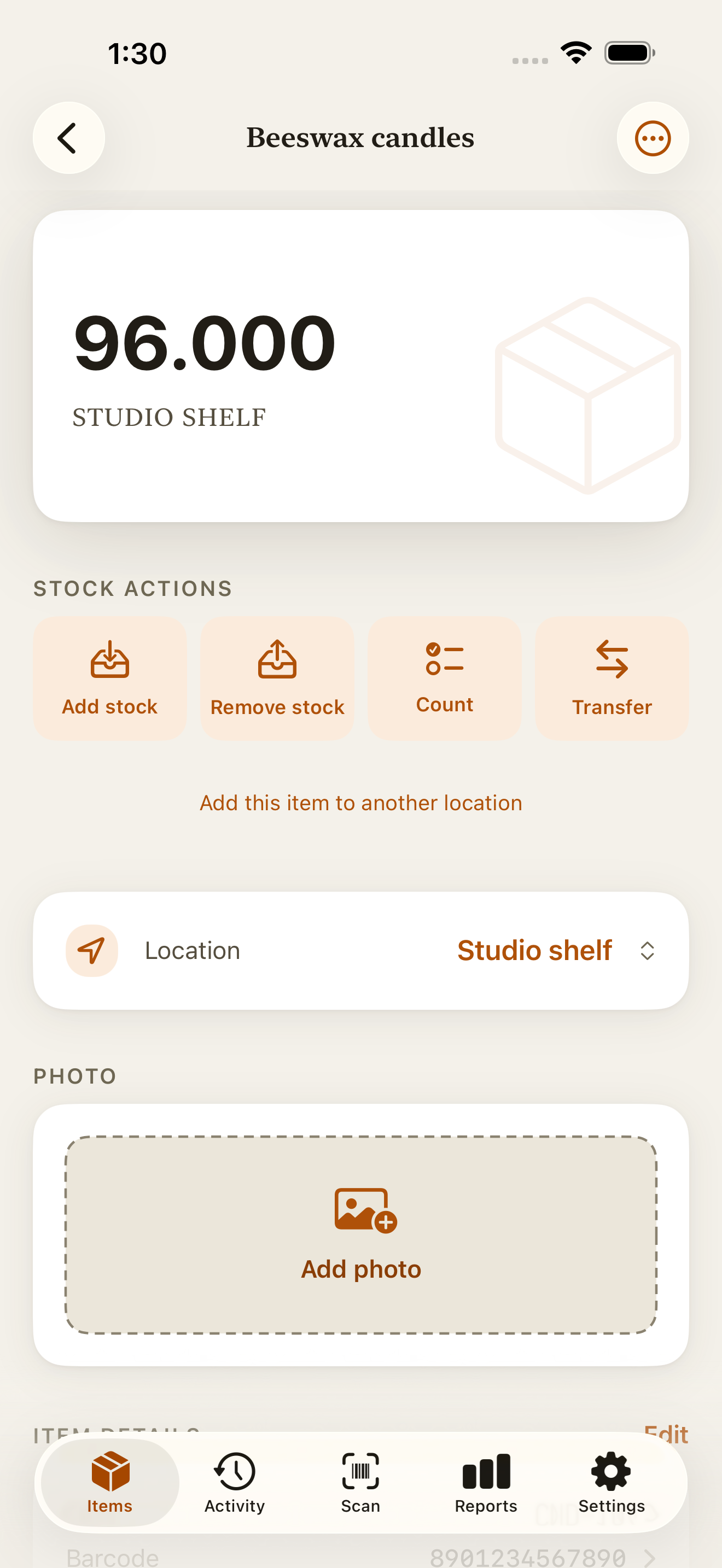
Do you need GS1 barcodes?
Not for your own stock. A barcode needs to be unique only within the system that reads it. If the codes are scanned inside your business, to find an item, record a delivery, or count a shelf, codes you make up will work. Countstead compares a scanned code with the codes saved on your own items.
Products sold through other businesses are different. GS1 US says retailers, online marketplaces, and distributors often require UPC barcodes that come from GS1, and that a barcode linked to another company, or not found in GS1’s records, may be rejected. If a shop or marketplace will sell your products, ask what it needs before you print anything.
You can use both kinds. A product that already carries a retail barcode can use that code in Countstead, and everything else can have a code of your own.
| A code you make | A GS1 barcode |
|---|---|
| You choose the number | You build it from a Company Prefix licensed from GS1 |
| Works in your own scanning, for example in Countstead | Works with retailers and partners that ask for GS1 barcodes |
| Unique within your own records | Unique worldwide |
| Example: CND-BW-S | Example: a numeric UPC or EAN |
Plan a code for each item
A code is easier to work with when its pattern tells you what the item is. A simple pattern is product type, then variant, then size. Keep codes short, and use capital letters, numbers, and hyphens.
Every item you count separately needs its own code, so each size or color gets one. Don’t reuse a code for a different product later, even after the first is discontinued, because old labels may still be on the shelf.
Countstead matches codes exactly: CND-BW-S and cnd-bw-s are different codes, so pick one style and keep it. Each code can belong to only one item in a workspace. If you try to reuse one, the New item form tells you which item already has it.
If you already give your items SKUs, you can use the same value as the barcode. Countstead keeps SKU and Barcode as separate fields, so enter it in both.
| Item | Code |
|---|---|
| Beeswax candle, small | CND-BW-S |
| Beeswax candle, large | CND-BW-L |
| Soy candle, large | CND-SY-L |
| Gift box, medium | BOX-M |
Code 128 or a QR code?
Code 128 is a linear barcode that holds letters, numbers, and symbols, which suits short codes like CND-BW-S. A QR code is a square pattern that holds more text.
On a Countstead label sheet, a code of 48 characters or fewer that uses only standard keyboard characters prints as Code 128. Anything longer, or a code with accented letters or other non-keyboard characters, prints as a QR code.
The Scan tab reads both, as well as EAN-13, EAN-8, UPC-E, and Code 39 barcodes.
Add the codes to your items in Countstead
Enter the code when you add the item. Afterwards, the item screen lists it under Item details, and scanning it in the Scan tab opens that item.
Start a new item
In Items, tap Add item and type the item’s name.
Enter the code
Tap More details. Under SKU and barcode, type your code in Barcode. For a label that’s already printed, tap the scan button beside Barcode to read it instead.
Save the item
Set Starting quantity if you know it, then tap Save item.
Print the labels
Countstead Pro prints label sheets from the codes you saved. In Reports, find Barcode label sheets, tap Choose items, and select items that have a barcode. Set how many labels each item needs, from 1 to 24, then tap Generate label sheet.
Countstead creates the label sheet and opens the share sheet. Choose Print to send it to an AirPrint printer, or save it for later. Each A4 page holds 24 labels of 63.5 × 33.9 mm, 3 across and 8 down, and any more continue on the next page. Every label shows the barcode, the item name, and the code.
Use label paper with the same layout. Print one test page on plain paper first, hold it against a label sheet, and check that each code sits inside a label. If it doesn’t, make sure the printer is set to A4 and isn’t shrinking the page to fit.
The pages are A4 only. If your printer uses US Letter paper, test how it handles an A4 page before buying labels.
Without Countstead Pro, you can print labels with any tool that makes Code 128 or QR codes. The printed code must match the code saved on the item exactly.
Test one label, then label your stock
Start with one printed label. In the Scan tab, choose Add stock or Remove stock under Next scan, then scan the label. A match opens that action for the item, and you can close it without saving.
If Countstead shows No item has this barcode, compare the code printed under the barcode with the code saved on the item. A missing hyphen or a lowercase letter makes it a different code.
Put labels where they are easy to scan: on the product or its packaging, or on the bin or shelf edge for small items and materials. Flat, matte surfaces tend to scan more easily than curved or shiny ones.
Common questions
- Can I make my own barcodes for free?
- Yes, for your own stock. Choose a code, save it with the item, and print it with any tool that makes Code 128 or QR codes. Scanning in Countstead is part of the free plan; printing label sheets in the app needs Countstead Pro.
- Do I need to register barcodes I make myself?
- Not when they are only scanned inside your business. Products sold through retailers, marketplaces, or distributors often need GS1 barcodes, so check with the business that will sell them.
- Can I use the barcode already printed on a product?
- Yes. When you add the item, tap the scan button beside Barcode so the field gets exactly what the camera reads. Countstead doesn’t look the code up anywhere else, so you still type the item’s name.
- Can I use my SKU as the barcode?
- Yes. Type the same value in SKU and in Barcode. A SKU of 48 characters or fewer, made of capital letters, numbers, and hyphens, prints as Code 128 on a Countstead label sheet.
Try the inventory demo
Add an item and record stock movements in the browser. The demo is a working example; camera scanning is simulated.
Try the inventory demoAbout this guide
Written by Imdad Ismail, an independent developer in Sri Lanka who makes Countstead. Where a guide gives steps in Countstead, they match the version on the App Store. To report a mistake, email [email protected].