Inventory guides
How to track expiration dates in your inventory
For each item, write down the soonest date on the stock you have in each place you keep it. Check the items that expire in the next few days, use those first, and change the date when that stock is gone. Countstead does this on iPhone and iPad and marks expired stock in your Items list.
Choose the date to record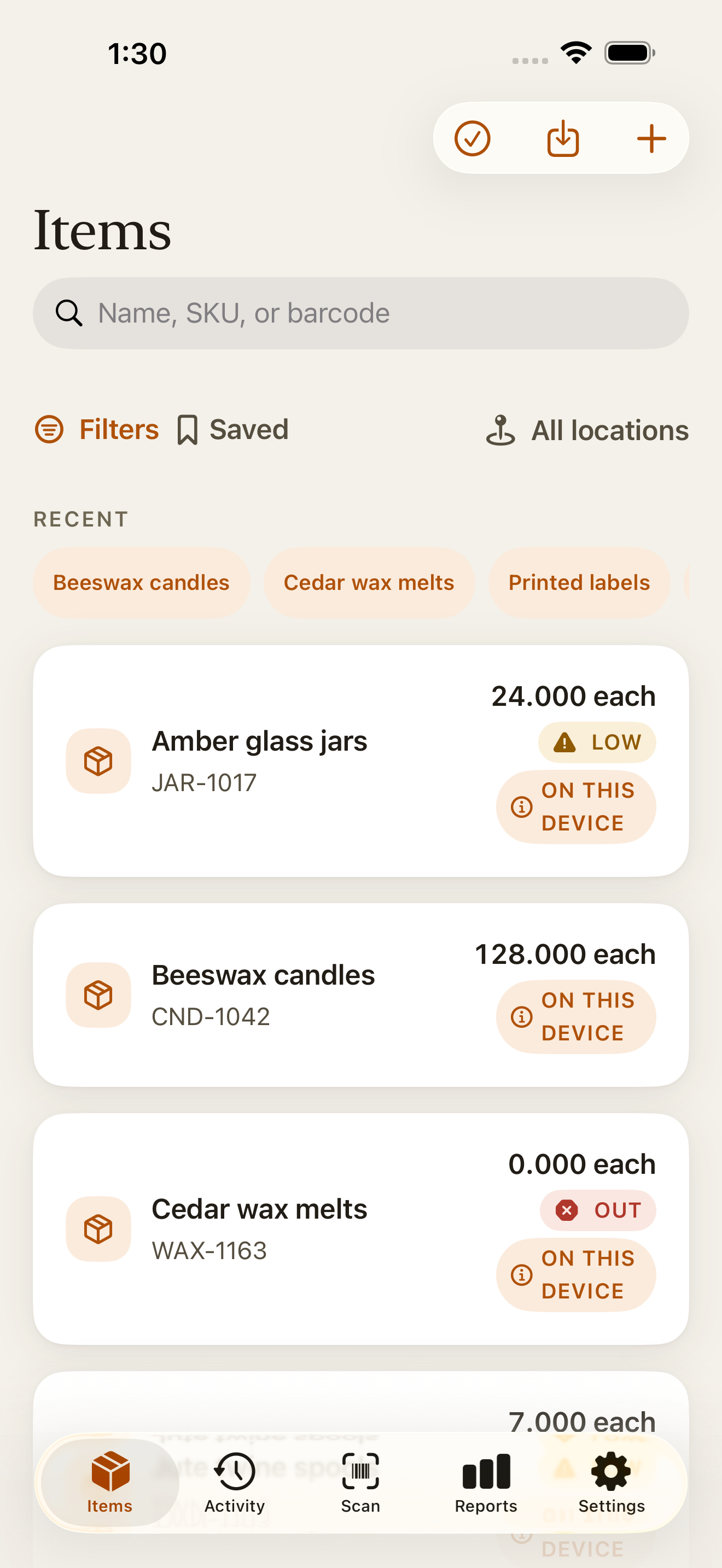
Record one date for each item in each place
Use the date printed on the pack, whether it says best before, use by, or expires. If you keep the same item in two places, such as a shop fridge and a back room, each place gets its own date.
When a delivery arrives before the last one is finished, you have two dates on the shelf. Record the sooner one, because that stock needs to go first. When it is used up or thrown away, change the record to the next date.
What each date type allows is set by the label and your local food safety rules; this guide covers only keeping the records.
| On the shelf | Date to record |
|---|---|
| 6 cartons, best before 20 October | 20 October |
| 6 cartons dated 20 October and 12 dated 27 October | 20 October, the sooner date |
| The 20 October cartons are gone; 12 dated 27 October left | Change it to 27 October |
Use the stock that expires first
This is called first expired, first out, or FEFO: you pick the units with the soonest date, whenever they arrived. Most of the time that is also the oldest stock, which is why it is easy to confuse with first in, first out. The two differ when a newer delivery carries an earlier date. Under FEFO, that newer delivery goes first.
Put the soonest dates at the front of the shelf or the top of the bin, and new deliveries behind them. Writing the date large on a box or bin label saves reading small print during a busy shift.
Check what is expiring every day
A short check at the same time each day finds stock before it expires. Look at everything that is past its date or due within the next three days, and decide what to do with each one: use it, sell it first, or throw it away.
Countstead marks stock Soon from three days before its best-before date up to the date itself, which reads Expires today. From the next day it is Expired. Only stock you still have is marked, so a location with nothing left drops off the list.
| Best before | Item screen | Items list |
|---|---|---|
| 13 October | Expired | Expired |
| 14 October | Expires today | Soon |
| 15 October | Expires tomorrow | Soon |
| 17 October | Expires in 3 days | Soon |
| 18 October | Nothing yet | Nothing yet |
Track best-before dates in Countstead
Setting dates and seeing what is expiring are part of the free app. Each date belongs to the item at one location.
Open the item
In Items, tap the item. If it is kept in more than one place, choose the location with the Location selector.
Set the date
Under Item details, tap Best before, which reads Not set until you add a date. Pick the date and tap Set date.
Find expiring stock
In the Items list, an Expired or Soon badge marks items with stock past or near its date. Open Filters and turn on Expired or Expiring soon to see only those. With both on, the list shows either.
Check every location
The Reports tab has an Expiring soon list of stock that is expired or due within three days, with the item, the location, and the date. The item screen shows the selected location’s status beside its balance. For an item kept in two or more places, it also lists each location that is expired or expiring; tap one to select it.
Expiry alerts on this device with Countstead Pro
Countstead Pro can alert you on this device when stock reaches the Expiring soon list. Expiry alerts use the Low-stock alerts setting in Settings, where you choose Immediate, Daily summary, or Weekly summary. You get one alert for each date you set.
The alert says how many need checking but names no item, because a lock screen is not private. Open Countstead to see which ones.
Record stock you throw away
When expired stock goes in the bin, take it off your records so the count stays right. On the item, tap Remove stock, enter the quantity, and choose Spoiled as the reason. Reports shows spoiled stock under Waste and loss for the last 30 days, separate from sales.
Countstead doesn’t change the date when you add stock. When a new delivery arrives after the old stock is gone, set its date. Otherwise the old date stays and the new stock shows as Expired. If you stop keeping dates for an item, open Best before and tap Remove date.
Tracking expiration dates in a spreadsheet
A spreadsheet works for a short list. Give each item one row for each place you keep it, with the columns below. The formulas work in Excel and Google Sheets: enter them in row 2 and copy them down.
Format Days left as a number, or it may show as a date. Status stays blank for rows with no stock or no date, as in Countstead. Sort by best before so the soonest dates come first. The sheet won’t remind you, so make opening it part of the daily check.
| Column | What goes in it |
|---|---|
| A: Item | The item name |
| B: Location | Where it’s kept |
| C: Quantity | How many you have |
| D: Best before | The date on the pack |
| E: Days left | =D2-TODAY() |
| F: Status | =IF(OR(C2<=0,D2=""),"",IF(D2<TODAY(),"Expired",IF(D2-TODAY()<=3,"Soon",""))) |
Common questions
- Is there an app to keep track of expiration dates?
- Yes. Countstead is an inventory app for iPhone and iPad that keeps a best-before date for each item at each location, marks expired and expiring stock in the Items list, and lists it in Reports. Alerts need Countstead Pro and happen on this device.
- What is the difference between FEFO and first in, first out?
- First in, first out uses the stock that arrived first. First expired, first out uses the stock with the soonest date. They give different answers when a newer delivery has an earlier date.
- Can Countstead track several batches with different dates?
- No. It keeps one date for each item at each location, with no batch or lot records. Record the soonest date on the shelf and change it when that stock is gone.
- Can I import best-before dates into Countstead?
- Not from a spreadsheet. The import doesn’t read dates, so set them on each item after importing. Countstead’s full CSV export does include them.
- Does an item with no stock show as expired?
- No. Countstead only marks stock you still have. Once the balance at a location reaches zero, that location no longer appears as expired or expiring.
Try the inventory demo
Add an item and record stock movements in the browser. The demo is a working example; camera scanning is simulated.
Try the inventory demoAbout this guide
Written by Imdad Ismail, an independent developer in Sri Lanka who makes Countstead. Where a guide gives steps in Countstead, they match the version on the App Store. To report a mistake, email [email protected].