Inventory guides
Free SKU generator: make a code for every product, size, and colour
This free SKU generator is for small businesses that want readable item codes. Type a short code for each product and list its sizes, colours, or other options. The generator joins them into one SKU per combination, such as TSH-BLK-S for a black T-shirt in small, using only capital letters, numbers, and hyphens. Copy the list, download it as a CSV that Countstead imports, or send the codes to the barcode label generator.
Make SKUsDownload Countstead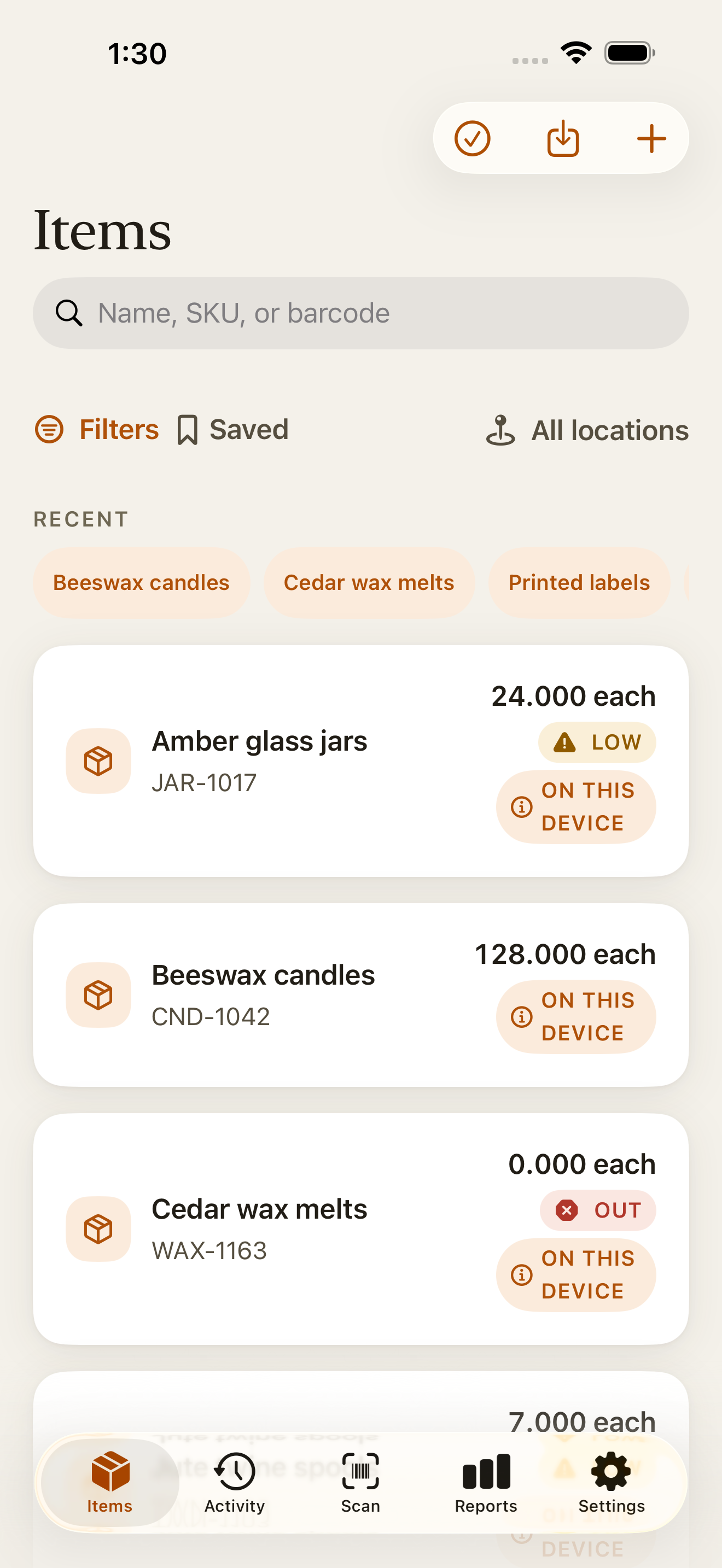
Make SKUs for your products
Add a row for each product. The example rows are a clothing shop’s; replace them with your own.
Free to use, with no sign-in. The SKUs are made in this browser tab, and your products aren’t sent or saved.
How to use the generator
Each row is one product. The generator combines the options you list for it in every possible way, so a T-shirt in three colours and three sizes makes nine SKUs. It takes up to 50 products and makes up to 1,000 SKUs at a time.
Name the product
Type the name you want to see in your inventory, such as T-shirt. Add a short code, such as TSH, or leave the code empty and the generator makes one from the first word of the name: a word of four characters or fewer stays whole, so Tote bag becomes TOTE, and a longer word is cut to three letters, mostly consonants, so Shampoo becomes SHM.
List its options
Type the values for each list separated by commas, such as Black, White in First options and S, M, L in Second options. Leave both empty for a product with no options. Common colours and sizes get familiar codes, such as BLK for Black and S for Small, and a value with a number is kept whole, so 250 ml becomes 250ML. To choose a value’s code yourself, type it after an equals sign: Navy=NVY.
Check the list
The list shows every SKU with its item name. When two products make the same SKU, or a SKU is longer than 48 characters, the row is marked, and copying, downloading, and printing stay off until you change a code.
Use the codes
Copy the list into a spreadsheet, download it as a CSV for Countstead, or send up to 100 codes to the barcode label generator to print.
How a SKU is built
A SKU, short for stock keeping unit, is a code you choose for one item you stock. Unlike a barcode printed by the manufacturer, it is yours, so you can make it readable: a short code for the product first, then a code for each option, joined by hyphens.
Keep the parts in the same order for every product, such as product, then colour, then size. That way anyone can read a SKU without looking it up.
| Business | Item | SKU |
|---|---|---|
| Clothing boutique | T-shirt, black, small | TSH-BLK-S |
| Candle maker | Beeswax candle, large | CND-BW-L |
| Café | Coffee beans, house blend, 1 kg bag | BEAN-HSE-1KG |
| Hardware shop | Wood screws, 4 × 40 mm, box of 200 | SCR-4X40-200 |
| Hair salon | Shampoo for retail, 250 ml | SHMP-250ML |
| Phone accessories shop | USB-C cable, 1 m, white | USBC-1M-WHT |
Rules that keep SKUs easy to read and scan
Start with letters
A code made only of digits can lose its leading zeros in a spreadsheet, so 0042 becomes 42. Starting with a letter keeps it as text.
Use capital letters, numbers, and hyphens
Leave out spaces, slashes, and accented letters. A code of 48 characters or fewer, made of these characters, prints as a Code 128 barcode on the label generator and on Countstead Pro’s label sheets.
Keep it short
Aim for about 12 characters. Short codes are quicker to read and type, and they print with wider bars.
Avoid look-alike characters
The letter O and the number 0, and the letter I and the number 1, are easy to confuse. Use them in one role only, such as 0 and 1 only in sizes and quantities.
Leave out details that change
Don’t put the shelf, the date you bought something, or its cost in the SKU. When those change, the code would be wrong.
Never reuse a SKU
When you stop selling something, keep its SKU retired and give a new product a new code. In Countstead, archive the old item instead of renaming it, so its stock history stays with the right code.
Sizes and colours in Countstead
Countstead doesn’t group sizes and colours under one product. Each SKU is its own item, with its own stock at each location, so a T-shirt in three colours and three sizes is nine items.
The free plan holds 30 active items, and archived items don’t count. Countstead Pro removes that limit. The generator shows how many SKUs your list makes, so you can see before importing whether it fits.
Countstead’s search covers the SKU field as well as the name, so typing a product code such as TSH lists every size and colour of that T-shirt.
Use your SKUs in Countstead
The CSV from the generator has three columns: name, sku, and barcode. It puts each SKU in both SKU and Barcode, because a scan in Countstead opens the item whose Barcode matches the code it reads.
Add opening quantities if you have them
The CSV has no quantity column. To import stock levels too, open it in a spreadsheet and add a column headed opening_quantity. Otherwise, count each item after importing.
Keep makers’ barcodes
If a product already has a maker’s barcode, such as a UPC or EAN, type that number in its barcode cell before importing, and keep the cell as text so leading zeros stay. You then scan the pack, and that product needs no label.
Import the file
In Countstead, open Items, tap Import from spreadsheet, and choose the CSV. The name, sku, and barcode columns match automatically. Tap Preview import and check the rows before adding them.
Print and stick the labels
Print the codes on the barcode label generator, or on label sheets in Countstead Pro, and put each label on the shelf or the item.
Scan to record stock
Scan a label to open its item, then record stock in, stock out, or a count. Scanning is part of the free plan.
Common questions
- What is a SKU?
- A SKU, or stock keeping unit, is a code a business gives to each item it stocks, such as TSH-BLK-S for a black T-shirt in small. Each size, colour, or pack size that you count separately gets its own SKU.
- How do I create SKU numbers for my products?
- You can use either of two patterns: a descriptive SKU made of short codes, such as TSH-BLK-S, or a category code followed by a running number, such as CND-1042. Pick one, start every SKU with letters, and never give the same SKU to a second product.
- What’s the difference between a SKU and a barcode?
- A SKU is a code you make up for your own records. A barcode is a code printed so a scanner can read it, either from the manufacturer or from your own labels. You can print your SKU as a barcode, and then one code does both jobs.
- Is a SKU the same as a UPC or EAN?
- No. A UPC or EAN is a number from GS1, printed on a product by its maker so any shop can scan it. A SKU is your own code for your own records. One product can have both: its UPC or EAN in the Barcode field and your SKU in the SKU field.
- How do I make SKUs for sizes and colours?
- Give the product a short code, then a code for each colour and each size, and join them in the same order every time: TSH-BLK-S, TSH-BLK-M, TSH-WHT-S. The generator on this page makes every combination for you.
- Can I print my SKUs as barcodes?
- Yes. A SKU of 48 characters or fewer, made of capital letters, numbers, and hyphens, prints as Code 128 on the barcode label generator and on Countstead Pro’s label sheets. Put the same code in the item’s Barcode field so a scan finds it.
- Should a SKU be only numbers?
- It’s safer to start with letters. Spreadsheet apps can drop leading zeros from a code made only of digits, and letters make the code easier to read. Numbers work well for sizes, quantities, and pack counts inside the SKU.
- Does the generator keep my product list?
- No. The SKUs are made in this browser tab, and nothing is sent or saved. When you send codes to the label generator, they pass to it within this tab only.
Try the inventory demo
Add an item and record stock movements in the browser. The demo is a working example; camera scanning is simulated.
Try the inventory demoAbout this guide
Written by Imdad Ismail, an independent developer in Sri Lanka who makes Countstead. Where a guide gives steps in Countstead, they match the version on the App Store. To report a mistake, email [email protected].