Inventory guides
Barcode label generator: print labels for your own stock
Type the code for each item, choose how many labels you need, and print them on A4 sheets of 24 labels or US Letter sheets of 30. A short code made of standard keyboard characters prints as a Code 128 barcode, a single row of bars, and any other code prints as a square QR code. Codes follow the same rule as Countstead Pro’s label sheets, and the A4 sheet uses the same layout. Scanning the labels in Countstead is part of the free plan.
Make barcode labelsDownload Countstead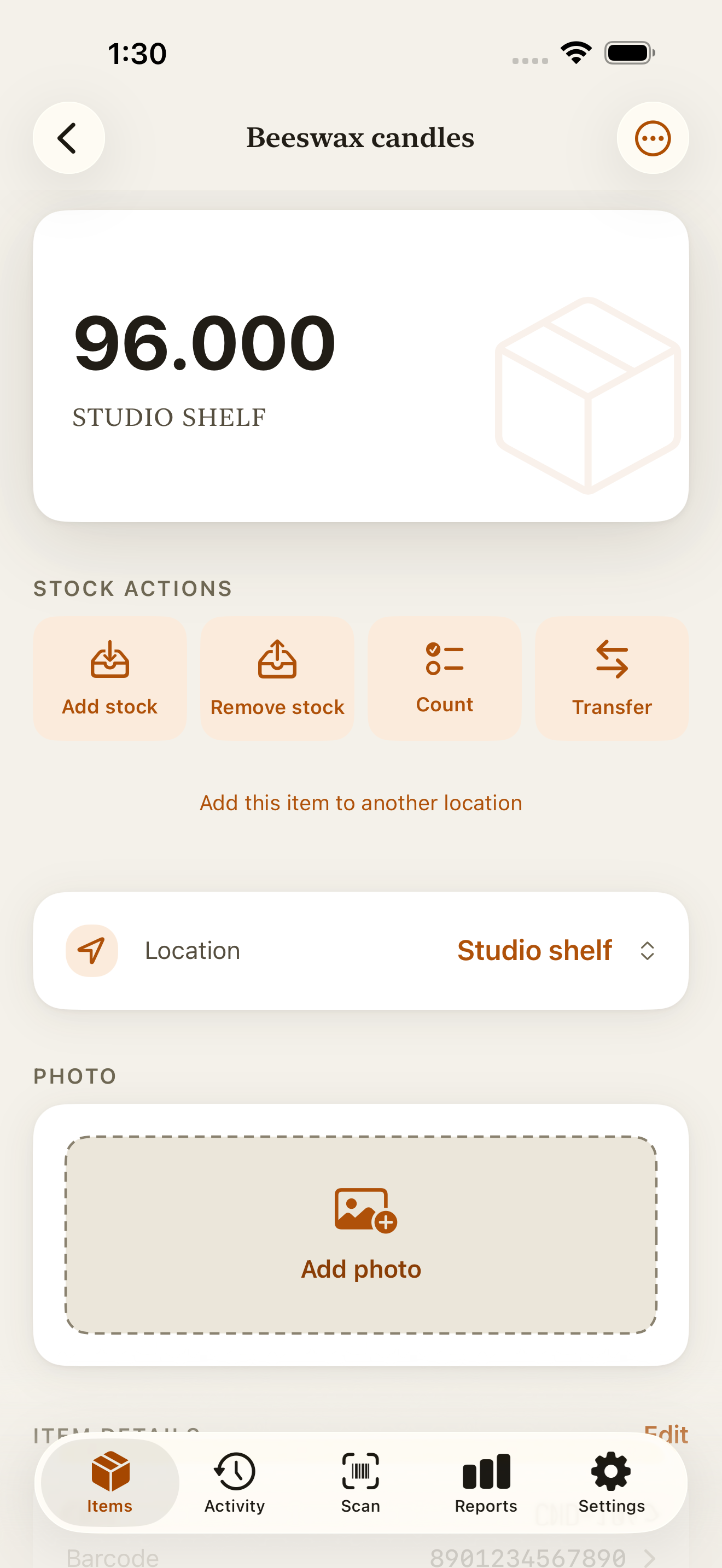
Make a sheet of barcode labels
Add a row for each code, then choose the paper. The example codes are a candle maker’s; replace them with your own.
Free to use, with no sign-in. The labels are made in this browser tab, and the codes aren’t sent or saved.
How to make your labels
Each row is one code. The generator keeps the code as you type it, apart from spaces at the start or end, which Countstead also removes when it saves a barcode.
Enter the code
Type or paste the code saved on the item, such as CND-BW-L. Add the item’s name if you want it on the label.
Choose the paper
Choose A4 for sheets of 24 labels of 63.5 × 33.9 mm, or US Letter for sheets of 30 labels of 2⅝ × 1 in.
Choose how many
Set the number of labels for each code, up to a full sheet: 24 on A4 or 30 on Letter. Labels fill each page row by row from the top left, and any more continue on the next page.
Check the preview
Each row shows whether its code prints as Code 128 or as a QR code, and the preview shows every page as it will print.
Print at 100%
Select Print labels. In the print dialog, choose the same paper size and set the scale to 100% or Actual size. Print one page on plain paper first and hold it against a label sheet.
Label sizes and layout
The A4 layout is a common size for sheets of 24 adhesive labels, and it matches the label sheets in Countstead Pro, which print on A4 only. The US Letter layout is the usual size for sheets of 30 address labels.
Letter labels are 1 in tall, against 33.9 mm on A4, so keep codes short on them: a long code that prints as a QR code may be too small to scan.
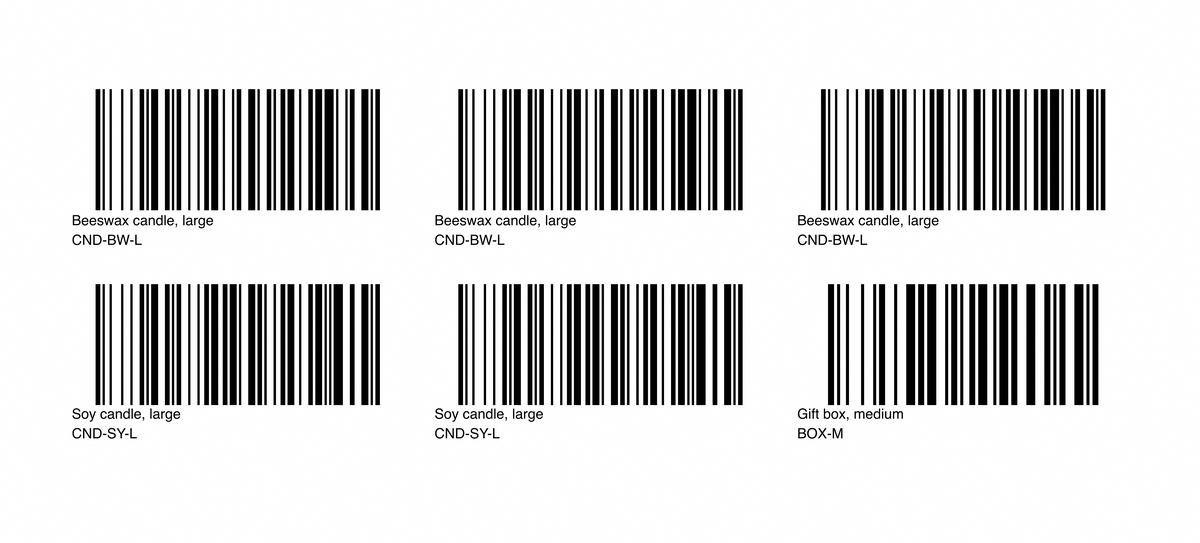
Every label shows the barcode, then the name, then the code. A name or code too long for one line is shortened on the label, but the barcode always holds the full code.
| Measurement | A4 | US Letter |
|---|---|---|
| Page | 210 × 297 mm | 8½ × 11 in |
| Labels per page | 24: 3 across, 8 down | 30: 3 across, 10 down |
| Label size | 63.5 × 33.9 mm | 2⅝ × 1 in (66.7 × 25.4 mm) |
| Left and right margins | 9.75 mm | 3⁄16 in (4.8 mm) |
| Top and bottom margins | 12.9 mm | ½ in (12.7 mm) |
| Gap between columns | None | ⅛ in (3.2 mm) |
Code 128 or a QR code?
A code of 48 characters or fewer that uses only standard keyboard characters prints as Code 128, a linear barcode made of a single row of bars. A longer code, or one with accented letters or other non-keyboard characters, prints as a QR code, a square pattern that holds more text. Countstead Pro uses the same rule.
A Code 128 barcode always fills the width of the label, so its bars get thinner as the code gets longer: CND-BW-L prints with wider bars than a code near the 48-character limit. Beyond 48 characters, the bars would be too thin to scan on a 63.5 mm label, so longer codes print as QR codes.
The Scan tab in Countstead reads Code 128 and QR codes, as well as EAN-13, EAN-8, UPC-E, and Code 39 barcodes.
Scan the labels in Countstead
A label opens an item only when its code matches the barcode saved on that item exactly. Save the code on the item first. When you add an item for a label you’ve already printed, tap the scan button beside Barcode to read the code from the label.
Test one label before you label your stock. In the Scan tab, choose Add stock or Remove stock under Next scan, then scan the label. A match opens that action for the item, and you can close it without saving.
If Countstead shows No item has this barcode, compare the code printed under the barcode with the code saved on the item. A missing hyphen or a lowercase letter makes it a different code.
Label sheets in Countstead Pro
This generator prints the codes you type. Countstead Pro prints the A4 sheet from the codes already saved on your items. In Reports, find Barcode label sheets, tap Choose items, and select items that have a barcode. Set how many labels each item needs, from 1 to 24, then tap Generate label sheet.
Countstead creates the label sheet and opens the share sheet. Choose Print to send it to an AirPrint printer, or save it for later.
Common questions
- Is this barcode label generator free?
- Yes, with no sign-in. The labels are made in this browser tab, and the codes you type aren’t sent anywhere or kept after you close the page.
- What label paper do I need?
- A4 sheets of 24 labels of 63.5 × 33.9 mm, or US Letter sheets of 30 labels of 2⅝ × 1 in. Print a test page on plain paper and hold it against a label sheet to check that each code sits inside a label.
- Why do the labels print in the wrong place?
- The page is usually being scaled, or the paper size in the print dialog doesn’t match the sheet. Choose the same paper size you picked here, set the scale to 100% or Actual size, and turn off any option to fit or shrink the page. Then print the test page again.
- Can I make barcodes for products I sell through shops?
- These are inventory labels for scanning your own stock. Products sold through retailers, marketplaces, or distributors often need GS1 barcodes, which carry a product number issued through your local GS1 member organization, so check with the business that will sell them.
- Can Countstead Pro print Letter sheets?
- No. Countstead Pro’s label sheets are A4 only, so use this generator for US Letter labels.
Try the inventory demo
Add an item and record stock movements in the browser. The demo is a working example; camera scanning is simulated.
Try the inventory demoAbout this guide
Written by Imdad Ismail, an independent developer in Sri Lanka who makes Countstead. Where a guide gives steps in Countstead, they match the version on the App Store. To report a mistake, email [email protected].